Bots are great at helping your employees to self serve HR, IT or any other internal employee functions by providing automated responses and taking meaningful actions. This increases employee's efficiency and saves your organization cost and time.
Bots have limitations and when a bot can’t help, it needs a way to connect employee with human subject matter experts. The Employee FAQ bot template is built with Power Virtual Agents that comes with a built-in capability to log an employee’s escalation request, notify a human expert, and allow them to quickly respond to the employee - all within Microsoft Teams. It also obtains employee feedback so you can make improvements to the bot over time. Being built on top of Power Virtual Agents, it can be easily customized and extended to suit your needs with no developer and data science background required.
The template supports the following features:
- Lessons Topics to illustrate how to build topics for your bot in Power Virtual Agents
- Escalation requests (allow users to make requests with a Title and Description then post the request to a team in Microsoft Teams for human support with an adaptive card)
- Instant chat links from the request adaptive card to talk to the user that has made a request
- Resolve requests directly in team channel via the adaptive card
- Status (provide the status of requests for both all and active requests)
- Feedback (receive and display feedback to a teams channel with adaptive cards)
- Receives and stores information into Microsoft Dataverse database
- Posts adaptive cards to in to Microsoft Teams teams
- Receives information from adaptive cards
- View and filter requests
- View and filter feedback
Each language has its own solution file in the Solutions folder. The supported languages are listed below:
- Chinese Simplified
- Chinese Traditional
- Dutch
- English
- French
- German
- Indonesian
- Japanese
- Portuguese (Brazilian)
- Spanish
Employee FAQ template can be used with Office licenses that include Power Virtual Agents. Learn more about Licensing for Power Virtual Agents for Teams. Easy way to check is if you can launch Power Virtual Agents Teams app in your Microsoft Teams client.
As you extend the bot beyond what is included in the template, you may be required to upgrade to a premium license. Learn more on Licensing for Power Virtual Agents on capabilities that require a standalone Power Virtual Agents subscription.
To install and use the Employee FAQ template you will need a Microsoft Teams account. If you do not have this, sign up here and make an account before proceeding.
First, add the required apps to Teams, and create your Power Apps app:
- Download the Employee FAQ template solution.
- Add the Power Virtual Agents app in Microsoft Teams, you can search for it directly in Microsoft Teams app store.
- Add the Power Apps app in Microsoft Teams, and open it.
- It will open the app in Home tab and select Start now.
- Select the team you want to use, and create an application. When prompted, name the application Demo and select Save. If this is the first time you are creating an app in the team, it will take a few seconds to setup a Dataverse database before you are prompted to name the application
Now, import the template solution:
-
In the Power Apps app, select the Build tab to see your list of teams on the side panel.
-
Select the team you choose in the previous step from the list. The app you just created will appear in the main section of the window, this may take a few minutes to update.
-
Select See all.
-
On the top menu bar, select Import, then select Browse in the pane that appears.
-
Select the template solution you downloaded, and then Next.
-
When you see the items to choose to import, make sure everything is selected and click Next.
-
If you have connections, select them, if you do not then add them. You will need to add Microsoft Teams, Office and Dataverse connection.
-
Select Import.


You have now imported the solution and your can go to the Build tab in Power Apps to see all of your items. To use the bot, you will need to go through some additional set up steps.
We need to update Power Automate Flows, validate the Employee FAQ bot is working and add our Employee FAQ Admin application to a teams channel. Once this section is completed, the Employee FAQ bot's escalation flow will be up and running and ready to be added with your organization's content.
-
In the Power Apps app, select the Build tab to see your list of teams on the side panel.
-
Select the team you choose in the previous step from the list, then select See all to view the solution overview.
-
Select Cloud flows on the side panel.
-
Select the FAQ Bot - Request flow to open it. This flow takes employee's escalation request and notify human expert in a team channel.
-
Select Edit.
-
Open the action Convert time zone - Select Your Timezone and set the destination time zone to your timezone.
-
Open the action Post adaptive card in a chat or channel - Select Team and Channel.
-
Change the Team and Channel to your desired team and channel for the feedback information adaptive card to be posted to.
-
Expand the condition action.
-
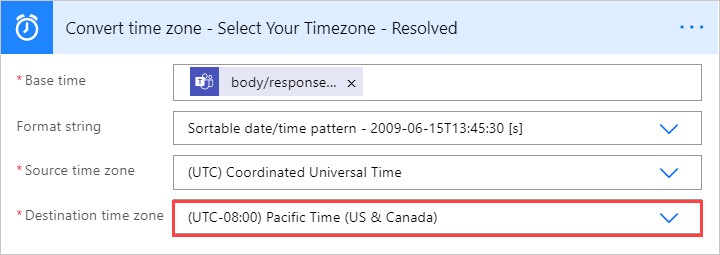
Open the action Convert time zone - Select Your Timezone - Resolved and set the destination time zone to your timezone.
-
Select Save.
-
Select the back arrow ←.
-
-
Select the FAQ Bot - Feedback flow to open it. This flow takes employee's feedback and post into a team channel for human expert to review
-
Select Edit.
-
Open the action Convert time zone - Select Your Timezone and set the destination time zone to your timezone.
-
Open the action Post adaptive card in a chat or channel - Select Team and Channel.
-
Change the Team and Channel to your desired team and channel for the feedback information adaptive card to be posted to.
-
Select Save.
-


-
Open the Power Virtual Agents Teams application.
-
Select Chatbots.
-
Select your team.
-
Select your chat bot.
-
Select Publish on the left menu.
-
Select Open the bot
-
Select Add to add the bot into Microsoft Teams for yourself
-
You will now be taken to a chat window with your bot. Here you can try trigger phrases to ensure that the bot is functioning correctly. We have listed several phases you should consider trying below:
- Hello
- Talk to agent
- What is the status of my request
- Leave review
-
For Talk to agent and Leave review, make sure to check the bot posts request and feedback to the team and channel you configured earlier. Note that you won't be able to deep link to yourself from the request adaptive card if you are the same person requesting it.


You can review the bot's performance in Power Virtual Agents built-in Analytics dashboard. In addition to the dashboard, Employee FAQ also comes with a Canvas app to allow experts to review the verbal feedback from employees.
-
Open the Power Apps app.
-
Select your team
-
Select See All.
-
Select the three dots next to the app name (...).
-
Select Add to Teams.
-
Select Add to Teams on the side menu that opens.
-
Select the dropdown arrow and select Add to a team.
-
Search for your team.
-
Select Set Up a Tab.
-
Select Save.
-
Open your team
-
Select the Employee FAQ tab
-
Once selected you will see the Employee FAQ Admin Canvas App. You will be able to view requests and feedback.


You have now fully set up the Employee FAQ template. The next step is to go to Power Virtual Agents Teams application to add FAQ content for the bot to answer your organization's questions. Extension documentation
The Employee FAQ template can easily be extended in Power Virtual Agents Teams application by adding new topics, messages, questions, actions and more.
As a starting point, we suggest looking at the greeting system topic, customizing it to provide a personal greeting that represents your company and how you want your users to start using the bot. There are also four lessons provided with the template to get you started on familiarizing yourself with Power Virtual Agents. Once you have gone through these lessons, you can freely edit the topics or simply create new topics to handle any additional areas you wish to include. You can also quickly and easily add new topics with the built-in topic suggestion feature.
Reach out to the PVA Community for help and ideas from our community members.
Once you are satisfied with the bot's content, it's time to make it available to employees. You can easily make the bot available in Microsoft Teams app store by following the steps to share the bot with your organization. We recommend to partner with your IT admin to also pre-pin the bot on the left rail so employees can easily discover the bot in Microsoft Teams without needing to manually install it. Learn more about best practice guidance to partner with admin to roll out bot in Microsoft Teams.
Alternatively, you can also directly share the bot's installation link with others in the organization without going through the admin approval process. Make sure you change the bot's access to fit your target audience so they have permission to install the bot.
Error code: 2012
This is an error for either importing Power Automate Flow problems or that the Flows have been changed/renamed. If you are experiencing this error, ensure that the Power Automate Flows are turned on. If the problem persists either reimport the solution or, if you have made changes, delete and then re-add the Flows to the PVA topics.