Repository navigation
Writing Java in VS CODE shows way too much warnings! #1657

Description

Java Code in vs code shows way too much warnings. I mean these are really unnecessary warnings ! Even IDEs like IntelliJ don't show these unnecessary warnings. I want to disable such warnings, but not all the warnings. Is there a way to do so, or can you please do something about it ?
Environment
- Operating System: Windows 10 Pro
- JDK version:
java 14.0.2 2020-07-14
Java(TM) SE Runtime Environment (build 14.0.2+12-46)
Java HotSpot(TM) 64-Bit Server VM (build 14.0.2+12-46, mixed mode, sharing) - Visual Studio Code version: 1.50.1
- Java extension version: 0.69.0
Steps To Reproduce
Download the folder below and open in vs code
Here we see that under MonthException we see a squiggle line with warning:

Warning Given:
The serializable class MonthException does not declare a static final serialVersionUID field of type longJava(536871008)
Even IDE like IntelliJ dont show these useless warnings...
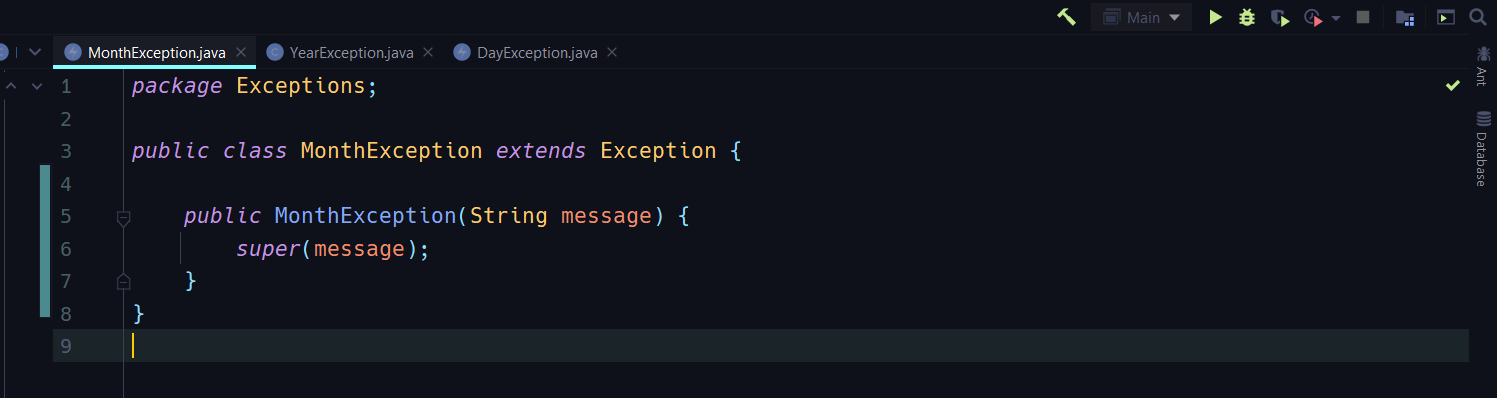
So is there any way to disable these warnings _(NOT ALL WARNINGS)_ I mean can I only select what warnings I want to see and what I don't?
Metadata
Metadata
Assignees
Labels
No labels
Activity
snjeza commentedon Oct 15, 2020
@lakshits11 You can try to add
to your your_project/.settings/org.eclipse.jdt.core.prefs
lakshits11 commentedon Oct 15, 2020
I did that but still it is showing me squiggle line under there !
snjeza commentedon Oct 15, 2020
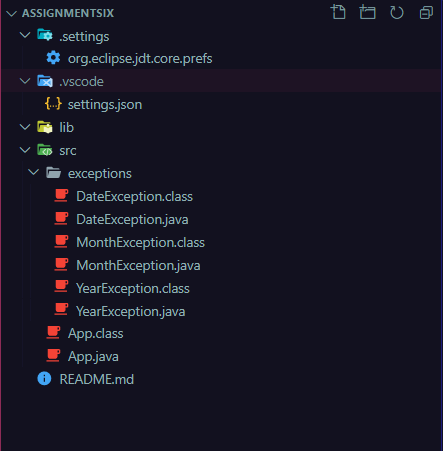
The .settings/org.eclipse.jdt.core.prefs file have to be placed to your project directory as follows:
Could you attach a project example?
lakshits11 commentedon Oct 16, 2020
Yes, see the image ..
snjeza commentedon Oct 16, 2020
@lakshits11 Could you, please, attach a project example?
lakshits11 commentedon Oct 16, 2020
You mean the zip file of my project ? If I am wrong, please help me to understand.
snjeza commentedon Oct 16, 2020
Right.
lakshits11 commentedon Oct 16, 2020
assignmentSix.zip
0dinD commentedon Oct 16, 2020
@snjeza I have an idea for why the Eclipse preference doesn't seem to be working. It seems that the language server won't recognize any Eclipse preferences under
.settingsin "invisible projects" or whatever they're called. For me, it works in any normal maven/gradle/eclipse project, but not in a simple "invisible project" like this one. Is there a reason behind this or should it be considered a bug? (And can you confirm?)@lakshits11 An alternative way to get rid of warnings is with the
@SuppressWarningsannotation:The annotation is a way to explicitly ignore certain warnings from within your code, which means that even other people working on the same piece of code won't see the error, regardless of their editor settings. FYI the
missingSerialVersionwarning is not specific to this extension, it's also present in the Eclipse IDE. The drawback with this solution is that you need to write this annotation on every class that will generate the warning, which can be tedious.If I'm right about why the Eclipse preference to disable the warning doesn't work, I have another workaround you can try which is to add some files to initialize your project as an Eclipse project instead of an "invisible project". This way, the extension should be able to recognize
.settings/org.eclipse.jdt.core.prefs. Try the following:Add a file called
.projectto your root project folder with the following contents:Also add a file called
.classpathto your root project folder with the following contents:Finally, after adding these two files, you should also restart VS Code. Did it work?
snjeza commentedon Oct 16, 2020
@0dinD You are right. We should link the .settings directory to an "invisible project" too.
lakshits11 commentedon Oct 17, 2020
@0dinD After adding
@SuppressWarnings("serial")it had gone but when I removed this and tried the other workaround, nothing happened , the warning line again came. Isn't there a way without changing the source code ?0dinD commentedon Oct 17, 2020
@lakshits11 Yes, you should be able to ignore the warning without adding the
@SuppressWarningsannotation. This used to work by just adding the related preference to.settings/org.eclipse.jdt.core.prefs, but as we've unfortunately found out this is currently broken for the so-called "invisible projects". This feature with the invisible projects was added a while ago to reduce the amount of unnecessary files in your project directory.I'm sure we'll find a fix for this in a future update, but in the meantime your best option is to convert the project into an Eclipse project, by following the instructions in my previous comment. If my instructions didn't work, I just realized there could be another action you'll have to take, which is to make sure the Java Language Server is running in "standard" mode. Please try the following:
assignmentSix- your project folder.settings- a folderorg.eclipse.jdt.core.prefs- a file with the contents @snjeza gave you.project- a file with the contents I gave you.classpath- a file with the contents I gave you...- the rest of your project filesRestart VS Code, and then open any Java file.
Make sure that the Java Language server is running in standard mode by checking the icon in the bottom right corner. There should be a thumbs-up icon, otherwise the language server is either not started yet or running in lightweight mode. If it's running in lightweight mode, you can start standard mode by pressing the rocket ship icon. See the gif below for which icons I mean and how to activate standard mode:

If you want standard mode to be enabled all the time, change the VS Code setting called
java.server.launchModeto "Hybrid" or "Standard".Let me know if this works, I've based the solution on the assumption that you've enabled lightweight mode, since it's the most obvious reason I see for why my previous instruction didn't work.
@snjeza Shouln't we also be able to detect Eclipse preferences when running in lightweight mode? It seems like an annoyance to have to switch to standard mode just because you want to ignore a warning or something similar. Also, should we track these problems with detecting Eclipse preferences in this issue (maybe we can rename it?), or should I create a new one for that?
lakshits11 commentedon Oct 18, 2020
@0dinD I am sorry to say but it didn't worked 😥 . I am attaching a screenshot for reference.
0dinD commentedon Oct 18, 2020
@lakshits11 The screenshot tells me that the Java Language Server is now running in standard mode, so it's strange to me that the warning still shows up. However, I just came to realize I forgot one small step in my instructions when I retraced my steps using the project you attached.
Can you try running the command Java: Clean the Java language server workspace from the command palette (press

Ctrl+Shift+Pto open)? You will be prompted to confirm the action, press the "Restart and delete" button.This command will clean up workspace settings for the Java Language Server, which seems to be necessary after converting the project into an Eclipse project, in order for the
.settings/org.eclipse.jdt.core.prefsto take effect.After doing this, you should see the warning disappear (fingers crossed). Sorry it had to be this complicated, this is definitely a bug with invisible projects (and lightweight mode).
lakshits11 commentedon Oct 18, 2020
@0dinD After I did what you told me to do , the curvy warning lines were gone, BUT ...wait wait wait, now when I run my App.java file using java test runner extension which comes in java extension pack, it was not able to recognize my MonthException and YearException java files and Build was failed in which error in the LOG file was MonthException and YearExceptioin cannot be ressolved to a type ! ALTHOUGH , the Date Exception was recognizable and it also created a DateException.class file as output ! I mean what the .... ? How funny and disgusting is it at the same time !! It is not showing any warning / curvy line now but I am pretty sure it all happened after clearing WorkSpace cache...before it, the code was running but the warning curvy lines were still there. I am attaching the screenshots for the same.
** 1. Here we can see that it's not showing any error/warning etc.**

** 2. But the build was failed after I run the code. **

** 3. ERROR Message in LOG file**

snjeza commentedon Oct 18, 2020
@lakshits11 could you attach your current project?
lakshits11 commentedon Oct 19, 2020
assignmentSix.zip
snjeza commentedon Oct 19, 2020
@lakshits11 I can't reproduce the issue.
You can try to run the Java: Clean the Java language server workspace command.
lucky-sharma06 commentedon Feb 11, 2026
I know this is irrelevant but Bro please can you give your theme name
lucky-sharma06 commentedon Feb 11, 2026
@lakshits11 bro i know this will not help you but can u please tell the theme name vscode... plzzz